

Dashboard Analytics
Dashboard analytics for restaurant food waste
Every box your team closes feeds the dashboard, so the numbers are there without anyone building a spreadsheet. Open it to see how much was wasted, what it cost, which items drove it and which part of the day it happened in, then drill into the view that answers your next question.
Questions it answers
- How much did we waste this week, and what did it cost?
- Which menu items do we throw away most?
- Is waste worse at lunch or at dinner?
- Did last month’s prep change make a difference?
- How does yesterday compare with the same day last week?
Start with the summary
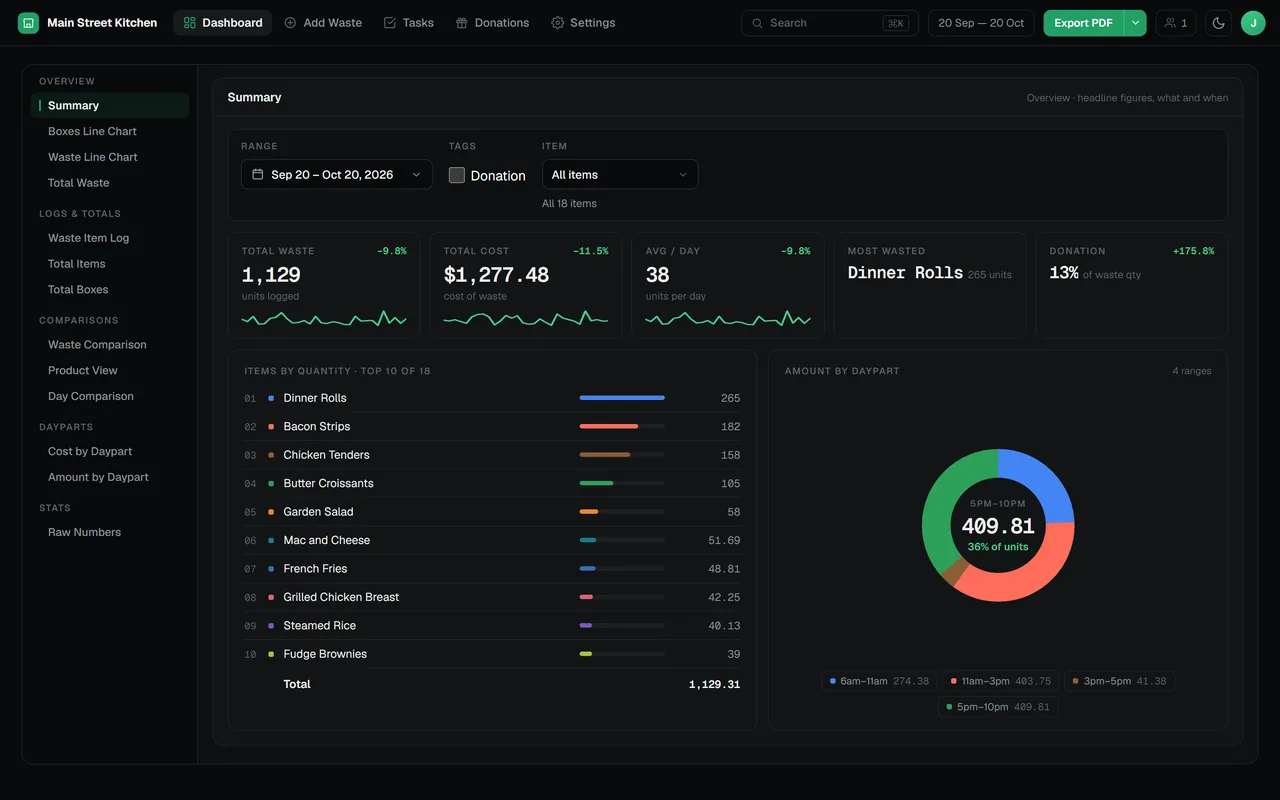
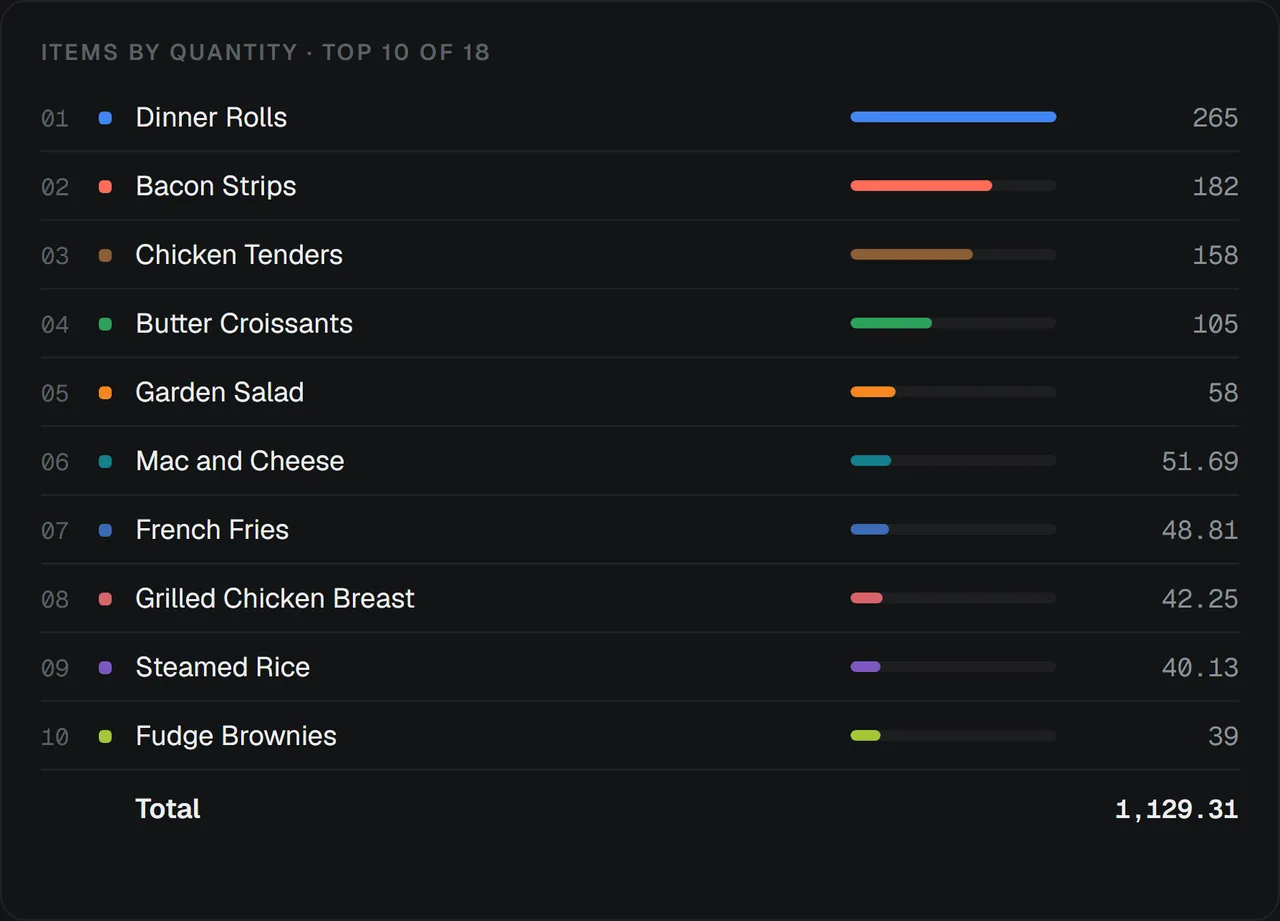
The dashboard opens on five headline figures: total waste, total cost, average per day, most-wasted item and donations. The totals carry a sparkline and their change against the previous period of the same length. Below them, the items you waste most are ranked and the same waste is split across your dayparts.
- Filter by date range and by item, and every figure follows
- Include or leave out donated boxes with one filter
- Figures count up as filters change, so the movement is easy to follow
Follow the trend, item by item
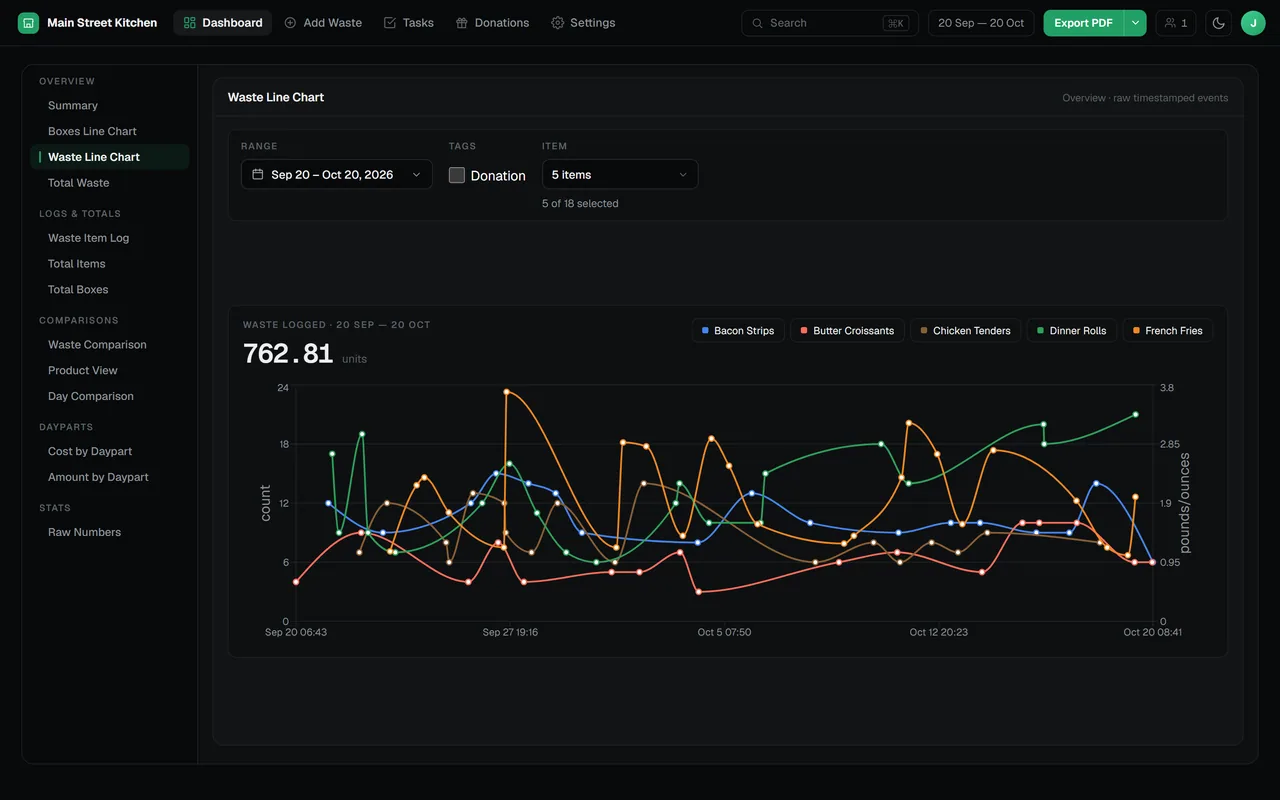
The Waste Line Chart plots daily waste for each item over any date range, and the Boxes Line Chart does the same for boxes closed. Use them to check whether a smaller prep batch or a menu change actually moved the numbers.
- Plot every item or only the ones you pick
- Total Waste rolls the period up by item and unit
Compare any two periods
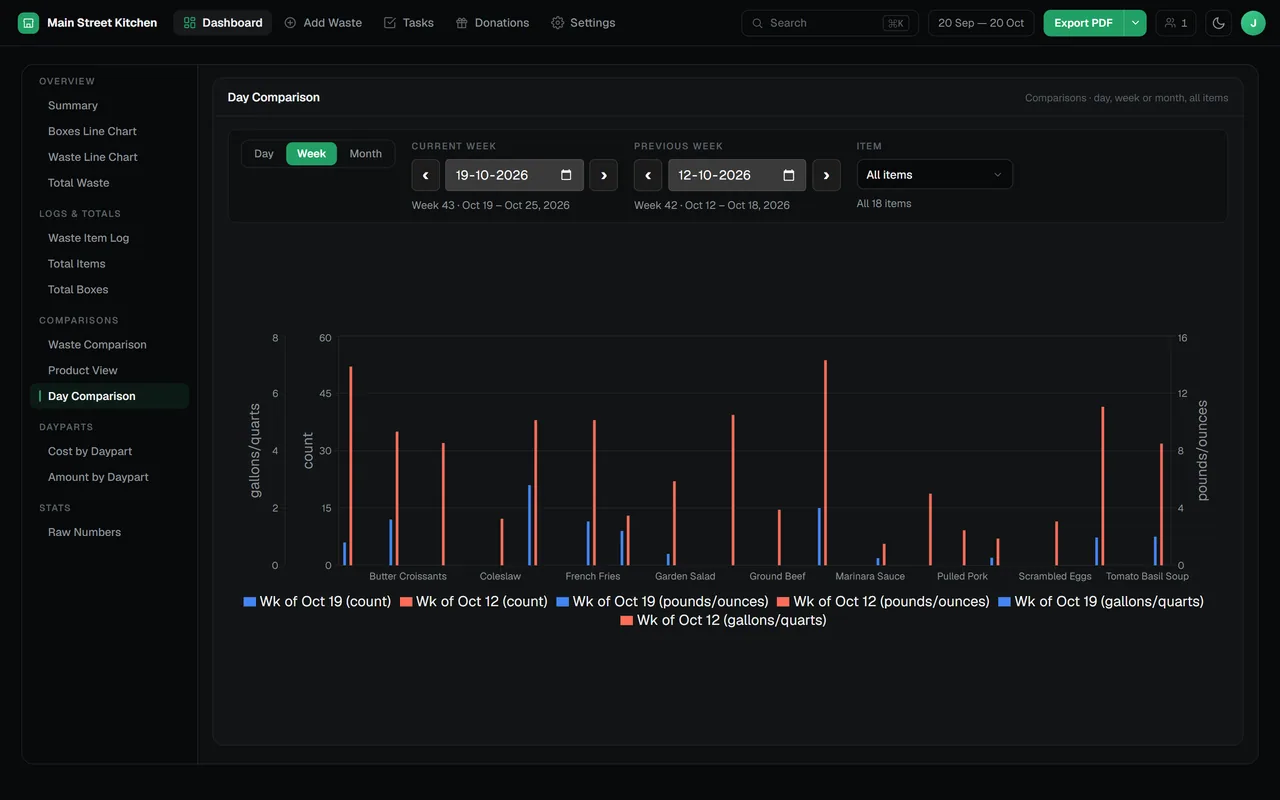
Three views compare periods you choose. Product View puts one item’s waste for two weeks or two months side by side, day by day. Day Comparison shows every item across two days, weeks or months. Waste Comparison overlays as many date ranges as you like on one chart.
- Defaults to the current period against the previous one, and both pickers stay editable
- Legends name the real periods, such as a specific week or month
- Day Comparison starts with yesterday against the same weekday last week, so partial days never skew it
Find the expensive part of the day
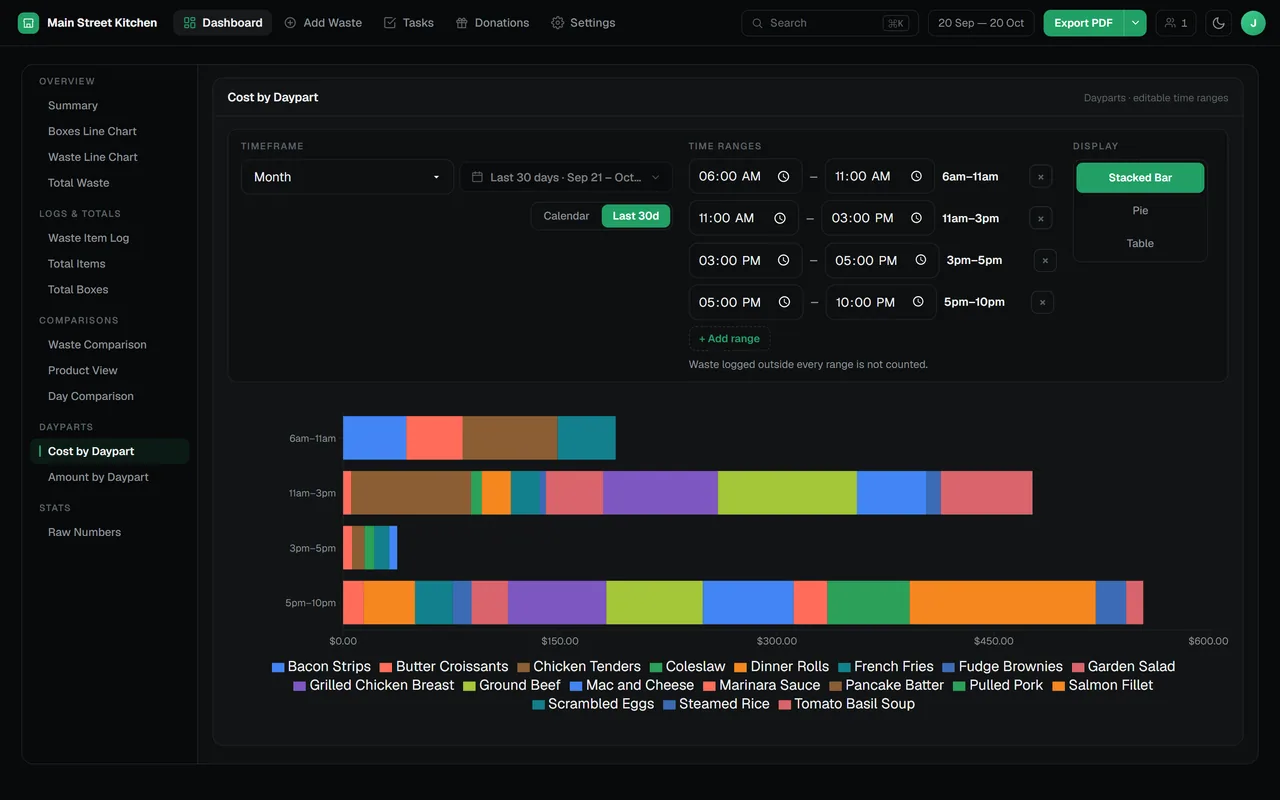
Cost by Daypart and Amount by Daypart split waste into the time ranges that make up your day, such as breakfast, lunch, afternoon and dinner, for a day, a week or a month. Show them as a stacked bar, a pie or a table. Set the ranges for each restaurant: a store that opens at 6:00 and one that opens at 11:00 do not share a breakfast.
Every entry, ready for the meeting
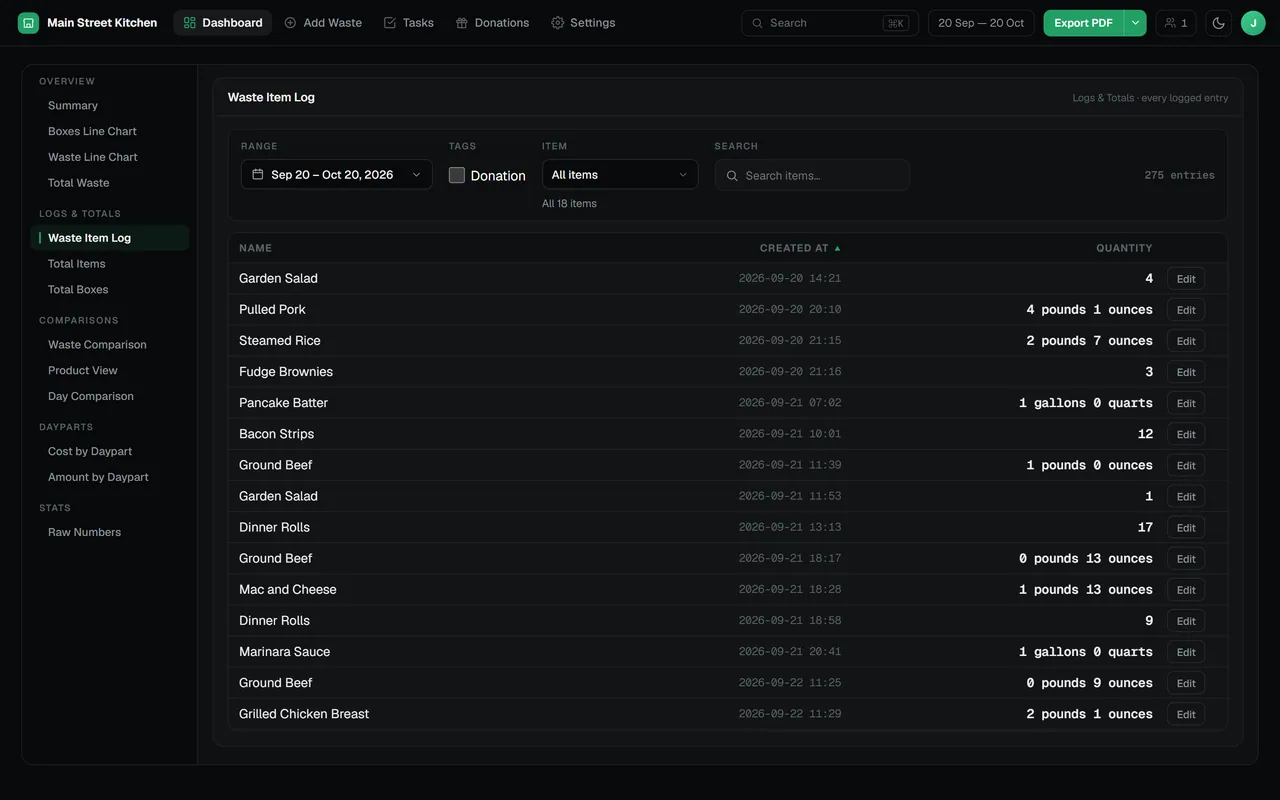
The Waste Item Log lists each entry with its item, quantity, unit, time and who logged it. Total Items, Total Boxes and Raw Numbers give the rolled-up figures. Every view exports as a PDF report, and as an Excel workbook containing the data behind it.
What Dashboard Analytics includes
13 views in 5 groups
Overview, Logs & Totals, Comparisons, Dayparts and Stats, in a rail that stays put.
Cost as well as amount
Items carry a cost, so waste is reported in money as well as in pounds, gallons or pieces.
Totals that add up
Ounces are stored as pounds and quarts as gallons, so mixed entries roll up cleanly.
Shared filters
Date range, item selection and the donation filter carry across the trend, log and total views.
Several restaurants
Switch restaurants from the sidebar. Users only see the restaurants they are assigned to.
PDF and Excel export
Every chart and table exports itself, ready to share with owners or your accountant.
Questions about dashboard analytics
What does the All Right Systems RMS dashboard show?
It opens on five headline figures (total waste, total cost, average per day, most-wasted item and donations), each compared with the previous period. From there, 13 views in five groups cover trend lines, item logs, totals, period comparisons, daypart breakdowns and raw numbers.
Where does the dashboard data come from?
From the waste your staff log in the RMS. Closing a box saves one entry per batch, with the item, quantity, unit, time and the person who logged it, so there is nothing to import or type up later.
Can I compare this week with last week?
Yes. Product View compares one item across two weeks or two months, Day Comparison compares every item across two days, weeks or months, and Waste Comparison overlays as many date ranges as you choose.
Can I export the reports?
Yes. Every view exports as a PDF report, and as an Excel workbook containing the data behind the view.
Does the dashboard work across several restaurants?
Yes. One account can run several restaurants and switch between them from the sidebar. Users only see the restaurants they are assigned to.
The rest of the RMS
Every feature reads from the same boxes your team logs.
Find out where your food cost goes
Tell us about your kitchen and we will show you the RMS.